Showing posts with label GIS Programming. Show all posts

27 June 2023

M6 Working with Geometries

Script results
Text file
ArcGIS output

Pseudocode

Start 

Set up

Prepare to write text file

Create(write) text file

Create variables

Field 1 = Feature/row OID 

Field 2 = Vertex ID 

Field 3 = X coordinate  

Field 4 = Y coordinate 

Field 5 = Name of the river feature 

Create for loop

Close text file 

Delete row and cursor variables outside of all loops

Stop


Flow chart

This week’s assignment was the culmination of the last six weeks of working with scripts. We worked with geometries and covered the topics of Nested loops, Search cursors, For loops, Writing to a TXT file, and Creating loops within a loop. It was a challenge to put together but using information and script templates from previous assignments helped me compile scripts to deliver the results. It is one lengthy script made up of several smaller ones. I had struggles with indentation and syntax specifically when writing the data to the text file which required a series of “for loops”. In the files above you can how the same results are different when they are viewed.


As I said it helps me to keep a notepad of scripts we must use to complete exercises. This week was consistent with previous weeks of reminding me to read through each script to ensure better understanding. This allows me to make mental notes of proper syntax. I created a notepad of scripts from completed exercises before beginning the assignment. This is very helpful in narrowing my focus to the script and helps me to understand it better. For this assignment, I went back to exercise 5’s scripts I saved as notes to get me going. Courses such as this have a way of “forcing “ me to be better organized and to find the greater detail in the details.


18 June 2023

M5 Explore and Manipulate Data


Scripts results
Module Flowchart


This week's module was exciting to put together and run.  For the assignment, we had to set up a workspace, create a file geodatabase (fGDB), list all feature classes while assigning the list to a variable, copy features from the Data folder into the new fGDB, create a Search Cursor for the cities feature class, create an empty dictionary named county_seats, and populate the dictionary with the names (keys) and populations (values) of all County Seat cities. It was a lot of information that went into the assignment and then making sure all of the details were correct was time-consuming. 

Once again the task of creating a script was a matter of following through on the exercise step-by-step. I am the person that has to go by the numbers and programming is certainly built that way. Ensuring the syntax, tasks, and verbiage are all inputted correctly is rewarding when the output is as it should be, mostly. I had trouble with using the two formats for adding pairs to a dictionary from the assignment. The formula is given to us from the assignment but I just could not get it to work, even though I tried many different ways of adding the information. 

14 June 2023

M4 Geoprocessing


Geoprocessing script result

Model build with tools used at the top

Map output of the model build


This week's module took me into geoprocessing, model building in ArcGIS, and, of course, more Python scripts. There was some editing of scripts to get the desired results as I needed to be sure I was using the correct folder for the results and not simply saving everything to the same folder. 
In building the model I had to open the toolbox under the analysis tab and then click and drag the desired tool to the model builder. The challenge was getting the order correct, the input and output features, and what is being clipped and by what. Once I finished this part I needed to write a script for geoprocessing. The scripts were for creating a buffer around a shapefile, dissolving the buffers into a single feature, and finally adding XY coordinates to the shapefile. 
On this side of things, with it all completed, it is easy to say it was not too bad but when something is wrong in the format, file path, or some unfamiliar error it can be frustrating. As time has gone by in this class, I have found it to be rewarding and enjoyable to be challenged with different material.

07 June 2023

M3 Debugging and Error Handling

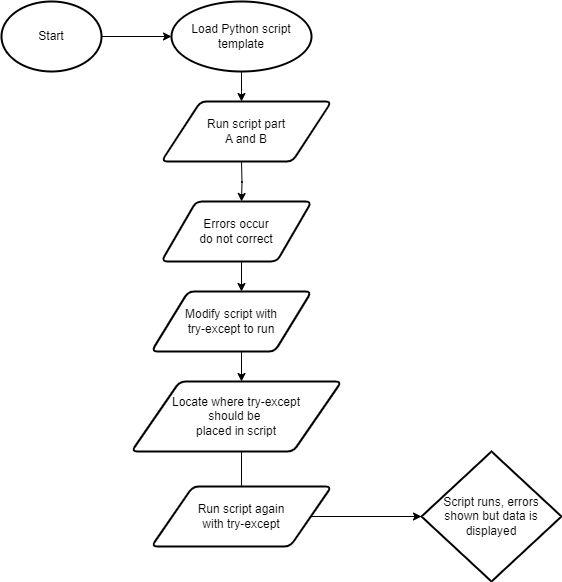
This week's module challenged us to find more errors and added a try-except statement to bypass an error in a script. This accounts for the error and still prints (displays) the data. I cannot say it has gotten easier "dealing" with Python programming but things certainly make more sense when I see and am able to correct errors. When presented with a script pause to look at it before running it, and pick out obvious errors that are present. Of course, the caveat is when the script runs, errors will present themselves where they were not visible before. 

The errors in the script could be misspelled words (ex. reference vs. reference or map vs. maps) or punctuation. Whatever they may be that is the point of each week's assignment and it never disappoints to frustrate and once scripts run correctly, feel the great thrill of victory. We had three scripts this week to find errors and run correctly, one of which introduced a try-except statement that accounts for the error but still runs. As Dr. Morgan and also in Agarwal's readings have reiterated several times, flow charts help create a path of enlightenment through the process of writing, editing, correcting, and completion of running the script with the correct response.

Script 1 results


Script 2 results


Script 3 results


Try-Except flow chart


31 May 2023

M2 Python Environments & Flowcharts

 This week’s lab is the beginning of learning to find errors, run simple scripts, and put some longer scripts together. As a first step, we needed to simply use a script to print our name. Print in Python means just showing results. The second step was to figure out errors that were intentionally entered into a script. We needed to find the errors and correctly run the script. In step 3 for this assignment we had to create random numbers using a while loop and in step 4 use an if-else script to remove a chosen random number.

Writing a script is straightforward in that you type and hit run. However, the caveat to it all is “Does it work?”. It is quite frustrating at times when you look at so many characters on a screen and cannot errors. That said I look forward to the next week’s module. It sounds cliched but it is the only way to learn sometimes, jump in, and you will sink or swim. The first of two screenshots shows the results of scripts we had to fix random errors built into the script. This was a challenge and fun, it helped to enlarge the screen and font to better see any errors. included in this are also the random numbers that were generated and the removal of a chosen integer. Below this is the flowchart I created to help break down the steps. Doing this is helpful in visualizing what needs to be done with writing the script. It also is an asset in the creative thinking process.


24 May 2023

M1 Python Environments & Flowcharts


This lab is about Python programming and is my first venture into the world of programming. The readings for this week tout how easy Python is as a programming language. Any endeavor into programming, writing script, or using syntax, in general, can seem daunting. Fortunately, Mr. Zandbergen’s words in Python Scripting for ArcGIS Pro are true so far. Putting the script together is deciding what to answer and ensuring the correct formula contains the correct words. There is a sequential order to things in IDLE with the programming language. This order is structured with pseudocode, flowcharts, and Python code. Creating a flowchart and using Python in IDLE is our first task with an input of print (‘Hello String”) and (“Hello World”). Very simple I know but it felt good. Implementing the code correctly can be confusing as well as interpreting the formula to enter it into flowchart format. Another thing to remember is how the shapes correspond to what task/step in the script is taking on. We created flowcharts as well in a program called Drawio, remember to save them as a png file. As I said it is easy enough but just make sure things are organized and placed correctly. I am on my way with programming. The first flowchart was saved with a transparent background.


UWF Student. Aspiring GIS Analyst.

Website and portfolio

For this blog post I will be talking about a part of my portfolio shown through my website which includes some examples of project work from...